
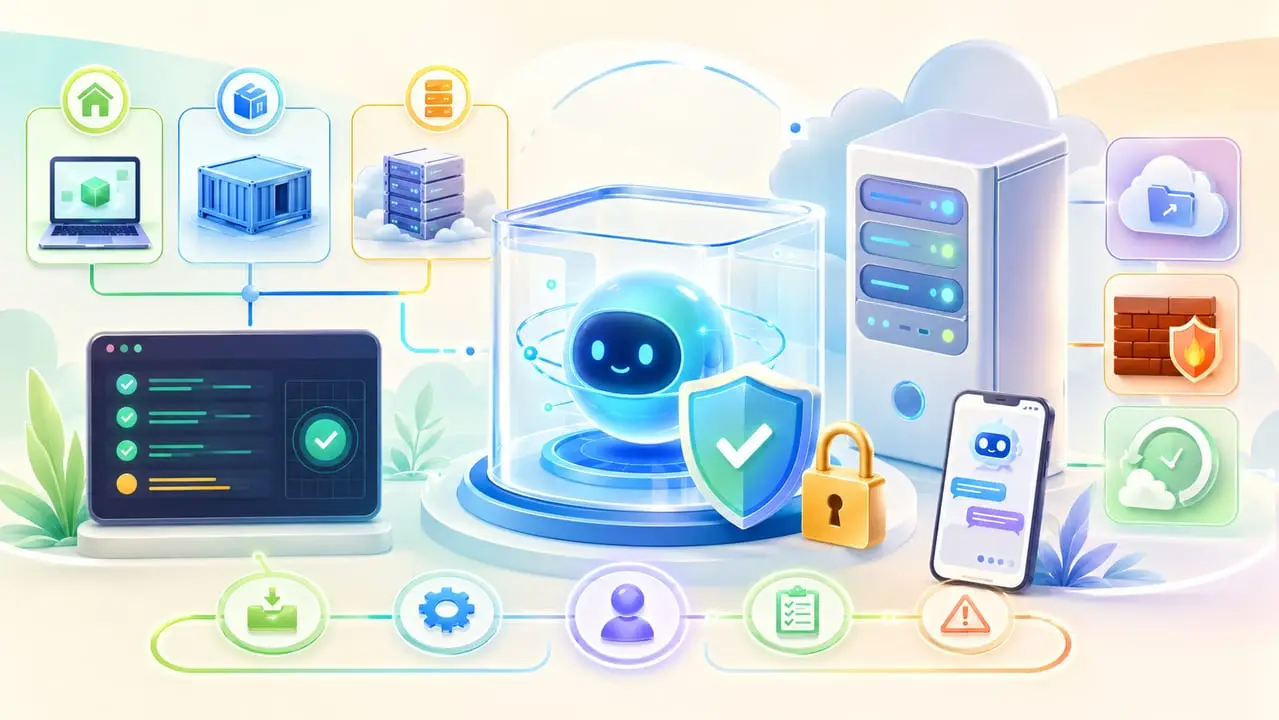
Why one more article
Once Hermes Agent is installed, connected to a model and answering in the terminal, it feels as if the main work is done. In fact it’s only the beginning.
Then a more important question comes up: how do you make the agent run reliably and safely, without it turning into a messy pile of settings?
Hermes can be run in many ways: on your own computer, on a server, in Docker, through WSL2 on Windows, through Telegram, through the Dashboard, with extra tools, memory, skills and external integrations. That’s one of Hermes’s strengths, but for a beginner this flexibility easily becomes a trap.
The temptation is to switch everything on at once: Telegram, voice messages, the Dashboard, cron jobs, MCP, several models, several messengers and automations. The right path is different: first build a minimal working system, make sure it’s stable, and only then add capabilities step by step.
The main idea of this article is simple: set Hermes up as a working tool, not a toy. It needs clear access rights, limits, diagnostics, protection and a carefully planned setup sequence.
Read part 1: installation and connecting to Telegram
Read part 2: Hermes Agent after installation
The best path for a first run
A beginner is better off starting not from the biggest possible configuration but from a simple working result.
First, install Hermes on macOS, Linux or Windows through WSL2. If you’re on Windows, it’s better not to try running Hermes directly in the ordinary Windows environment. WSL2 is more reliable: it’s a dedicated Linux environment inside Windows, where tools like this usually run more steadily.
After installation, choose one model provider. There’s no need to connect five different services straight away. One option is enough for a first run: OpenRouter or Nous Portal, for example. OpenRouter is handy because you can pick different models through it and switch between them later without reconfiguring the whole system.
Then test Hermes in the terminal. This matters. The agent should first answer properly in the CLI, that is, on the command line. Only after that does it make sense to connect Telegram, the Dashboard, cron jobs and other extras.
If a simple chat in the terminal doesn’t work yet, Telegram won’t make things easier. It will only add another layer of problems. You won’t be able to tell where the error is: in the model, the API key, the gateway, the Telegram bot or Hermes itself.
The right order is:
installation first;
then one model provider;
then the first reply in the terminal;
then checking the tools;
then diagnostics;
then the Dashboard or Telegram;
and only after that, automations.
What not to do on day one
The main beginner’s mistake is switching on too much at once.
On day one there’s no need to connect Telegram, Discord, Slack, WhatsApp and other messengers all at the same time. One interface is enough. The terminal first, then Telegram.
There’s no need to connect MCP straight away. MCP is a way to give the agent access to external tools and services: GitHub, databases, file systems or internal APIs, for example. It’s powerful, but if you don’t yet understand exactly why you need it, put it off.
There’s no need to connect ACP straight away either. ACP is for when you want to use Hermes inside a code editor such as VS Code, Zed or JetBrains. For an ordinary start it isn’t required.
There’s no need to install every skill in sight. Skills are ready-made abilities or instructions for the agent. They’re useful, but every new skill widens what the agent can do, and so widens the potential risks too.
There’s no need to build a complex system out of different models straight away. Let one model work first. Later you can split the tasks: one model for conversations, another for housekeeping, a third for images or context compression.
The point of day one isn’t to switch on as many features as possible. The point is to get one stable, clear and safe working scenario.
Local install, Docker, VPS and WSL2: what to choose
Hermes can be run in several ways. Each has its pros and cons.
Local install
A local install means Hermes runs right on your computer. It’s the simplest way to get acquainted, especially if you have macOS or Linux.
The upside is that everything is quick: install, launch, test. The downside is that the agent gets access to your main working environment. If it can run commands and work with files, that already calls for caution.
A local install is fine for a simple test. For ongoing work and automations, it’s worth thinking about a more isolated option.
WSL2 for Windows
If you’re on Windows, WSL2 is the better choice. Put simply, WSL2 is Linux inside Windows. You work on your own computer, but the commands run in a Linux environment.
It adds one extra step to the installation, but it cuts down the number of problems. Many tools for agents, servers and automations work better in a Linux-like environment.
Docker
Docker is a way to run Hermes in a separate container. Think of a container as an isolated box in which the agent lives with its own dependencies.
The advantage of Docker is that Hermes has less effect on the main system. If the agent runs a command, it happens inside the container, not directly on your computer or server.
Docker is a little more complicated than a local install, but it’s useful if you’re worried about security. Especially if the agent needs access to the terminal.
A VPS or VDS server
A VPS or VDS is a remote server. It runs all the time and doesn’t depend on your laptop.
It’s the best option if you want Hermes available 24/7 and answering in Telegram on your phone. A server doesn’t go to sleep, doesn’t shut down along with your computer and can run background tasks.
But a server calls for basic discipline: a separate user, SSH access, a firewall, updates, closed ports and control over which commands the agent can run.
If you’re just trying Hermes out, start locally. If you want more safety, use Docker. If you want an always-on agent in Telegram, go for a VPS.
Why Docker helps with security
Docker isn’t there “for show”, and not because that’s what developers do. Its main benefit for a beginner is isolation.
Hermes can run commands. And a command in the terminal is already an action in the system. The agent can read files, create files, change settings and run scripts. If all of this happens directly on your main server, a mistake can affect the whole system.
Docker limits the agent’s reach. It runs inside the container and works within the environment you’ve given it.
But there’s an important point here: Hermes’s data has to be saved properly. That’s what a volume is for: a mounted folder on the server or computer. Put simply, it’s the place where the settings, memory, sessions, skills and keys are kept.
If you don’t mount such a folder, the data may stay inside the container. And when the container is deleted or recreated, the data disappears with it.
So the rule is simple: if you run Hermes in Docker, make sure the data is saved to an external folder and not only inside the container.
What a server for Hermes should look like
If you’re installing Hermes on a VPS, don’t pick an underpowered server.
A practical minimum is 2 CPU cores and 8 GB of RAM. Hermes itself may not use much memory, but if you switch on extra features such as browser automation, the load will grow.
For the operating system, Linux is the better choice, Ubuntu for example. It’s a clear, widespread option, and instructions for it are easy to find.
Before installation, it’s worth doing some basic server preparation:
update the system packages;
create a separate user;
set up login with an SSH key;
switch off unnecessary access;
think about a firewall;
don’t run the agent as root unless you have to.
Root is the system’s main user, with maximum rights. If the agent runs as root, a mistake it makes can affect the whole server. It’s better to give it a separate user with limited rights.
Quick setup and Full setup
Hermes usually offers two setup options: Quick setup and Full setup.
Quick setup is the fast path. It helps you choose a model, enter an API key and go through the main steps. For a beginner it’s the best option.
Full setup is a more detailed configuration. There you can go deeper into the agent’s behaviour, the tools, the terminal backend, the persona profile and other parameters.
It’s better to start with Quick setup. Its job is to get you to the first working result faster. Everything else can be configured later.
Full setup makes sense once you already understand:
where the agent will run;
what tasks it should do;
what tools it needs;
what level of access is safe;
whether you need Docker;
whether you need Telegram;
whether you need external integrations.
Where Hermes keeps settings and secrets
Hermes has different kinds of settings.
Secrets, meaning API keys, tokens and passwords, are usually kept in the .env file.
Ordinary settings, such as the agent’s behaviour, the gateway, allowed users and the approval mode, can be kept in config.yaml.
The difference matters.
.env is the place for secrets. Don’t show it, send it to other people, publish it on GitHub or include it in screenshots.
config.yaml defines how the system behaves. It can also contain important information, but usually not the keys themselves: rather, the rules the system works by.
If Hermes isn’t working, check both places. In .env, whether the keys are correct. In config.yaml, whether access, the gateway, approvals and tools are set up correctly.
How to check the first run properly
After installation there’s no need to connect Telegram or cron straight away. First, check the foundation itself.
Launch Hermes in the terminal. It should show which model is selected, which tools are available and which skills are loaded.
After that, it’s better not to give an abstract request like “help me” but a request that tests the agent’s capabilities.
For example:
“What tools do you have available right now? Name the five most useful for a beginner and suggest one safe test task for each.”
A request like this is useful for several reasons at once.
It checks that the model answers.
It shows whether the agent can see its tools.
It helps you understand which features are already available.
It doesn’t trigger any dangerous actions.
If Hermes answers a request like this properly, you can move on. If not, fix the basic problem first.
Diagnostics: what to check if Hermes isn’t working
If Hermes is behaving oddly, don’t start changing everything at once. It’s better to go step by step.
First, check whether the Hermes command starts at all. If the terminal says the command isn’t found, the problem may be PATH. PATH is the list of places where the system looks for programs. Sometimes after installation you need to restart the terminal or reload the shell settings.
Then run the Hermes diagnostics. Hermes has a command that checks for the main configuration problems.
Next, check the model and the API key. If the key is wrong, expired or pasted in the wrong place, the agent won’t be able to get a reply from the model.
Then check the tools. Sometimes the model answers, but the tools are unavailable or switched off.
If the problem is in Telegram, check the gateway. The gateway is the bridge between Hermes and the messenger. If the gateway isn’t running, the Telegram bot won’t answer, even if Hermes itself is installed correctly.
A good diagnostic order is:
the launch command first;
then diagnostics;
then the model and the key;
then the tools;
then the gateway;
then the Telegram bot and allowed users.
That way it’s easier to find the cause without breaking the working parts of the system.
Common installation mistakes
The first mistake is adding features before checking the CLI. If you connect Telegram, cron, the Dashboard and external services all at once and then something doesn’t work, it will be hard to tell where the cause lies.
The second mistake is not saving the Docker container’s data to an external folder. In that case you can lose memory, settings and sessions when the container is recreated.
The third mistake is using the wrong API key. Sometimes the key is copied with an extra space, has expired, was created for a different provider or was pasted in the wrong place.
The fourth mistake is not setting up allowed users for Telegram. If you don’t restrict access, the bot may answer people other than you.
The fifth mistake is giving the agent rights on a VPS that are too broad. If the agent runs commands directly on the server with high privileges, one mistake can affect the whole system.
Real problems users run into
Some errors look complicated, but the cause is often fairly simple.
For example, there may be a Python version conflict. Hermes needs a modern version of Python. If the system has an old one, the installation can break.
There may be a problem with Docker and Telegram. For example, the container may be missing an extra dependency needed for Telegram webhooks. In that case the gateway may crash. The fix is to install the missing dependency or use a different connection mode.
There may be problems with Matrix and encryption if an old version of Hermes is in use. In such cases it’s better to update Hermes first and only then switch on the complex features.
Sometimes after a Hermes update, changes appear in the project’s dependency files. This can look like a breakage, although in fact the system has simply rebuilt its dependencies.
The main takeaway: many Hermes problems come not from the agent itself “breaking” but from the environment: Python versions, Docker, extra dependencies, terminal settings or an outdated version.
Tirith: built-in checking of dangerous commands
Hermes has a built-in security system called Tirith. Its job is to check commands before they run.
Put simply, when the agent wants to run something in the terminal, Tirith tries to work out whether the command looks dangerous.
It can warn about risks such as:
attempts to extract secrets;
suspicious SSH commands;
commands that look malicious;
actions that could lead to a data leak;
commands that look like an attempt to get round security.
If a command looks risky, the user can approve or reject it.
For a beginner, the manual or smart approval mode is the better choice.
Manual mode means the agent asks for permission before potentially dangerous actions.
Smart mode means simple, safe actions go through automatically, while dangerous ones need approval.
It’s not worth switching the checks off completely at the start. Hermes can be useful precisely because it can act. But every action should be under control.
Ports, the firewall and the Dashboard
When Hermes runs on a server, it’s important to keep track of which ports are open to the outside world.
Think of a port as a door into a service. If the door is open to the internet, anyone at all could potentially knock on it.
Hermes may have separate ports for the API server and the Dashboard. If you don’t use them publicly, it’s better to close access with a firewall.
A firewall is a set of rules that allows or blocks network connections. Put simply, it helps you close the doors you don’t need.
Be especially careful with the Dashboard. The Dashboard is handy because you can view sessions, settings, logs, cron jobs and the agent’s state through it. But exposing the Dashboard to the internet without a password or VPN is dangerous.
The right approach is to open the Dashboard only through a secure route: an SSH tunnel, a VPN or a reverse proxy with authentication, for example.
Other people’s experience shows clearly how this ends in practice: researchers found more than twenty AI agent control panels open to the public, and along with them, work logs and hundreds of keys and passwords leaked out. The full story is in the article on AI agent attacks from the inside.
For most users Telegram is enough. And Hermes’s internal panels shouldn’t be reachable by the whole internet.
How to update Hermes in Docker
If Hermes runs in Docker, an update usually looks like this: pull the new image, stop the old container and start a new one.
But everything depends on whether the data has been saved properly.
If you have an external data folder mounted, the update goes smoothly. The new container uses the old settings, memory, sessions and skills.
If the data lived only inside the container, you can lose it during the update.
So, once more: for a Docker deployment, an external data folder is a must.
It’s also useful to set up automatic restart for the container. Then, if the server reboots, Hermes comes back up again without a manual start.
Logs and gateway health
When Hermes is in constant use, it needs looking after like any other server service.
If something goes wrong, look at the logs first. Logs are a record of events. In them you can see why the agent isn’t answering, why the gateway crashed, why the model won’t connect or why a tool is returning an error.
If the Telegram bot isn’t answering, check the gateway first.
The gateway may be configured but not running. Or it may have crashed. Or a conflict with another process may have stopped it.
It’s useful to check the gateway’s status regularly and know how to restart it. If Hermes lives on a VPS, it’s better to run the gateway as a system service so that it comes back up automatically after the server reboots.
Cron jobs: when to add a schedule
Hermes can run tasks on a schedule. That’s handy for regular scenarios.
For example:
send a news digest every morning;
check free space on the server once a week;
make a backup every night;
check the status of a site or service;
put together a weekly report;
send a summary of GitHub notifications.
But it’s better not to add cron jobs straight away. The model, the CLI, the tools, the gateway and the channel that delivers results should all be working reliably first.
If the base system is unstable, a schedule will only add chaos. The agent will try to run tasks, but you won’t understand why they don’t arrive, fail or run the wrong way.
Backup and import: why it pays to understand them in advance
Hermes has commands for backing up and moving data.
Backup is for saving settings, memory, sessions and other important data.
Import is for restoring them or moving them to another environment.
This is especially useful if you first tested Hermes locally and then decided to move it to a VPS. Or if you want to save the current state before an update.
It’s better to learn about backup before something breaks. A backup isn’t excessive caution but a normal part of working with an agent that gradually builds up memory and settings.
Tools: what to switch on first
Hermes comes with a large set of tools. But there’s no need to switch them all on at once.
For the first stage, the basic capabilities are enough:
working with files;
the terminal;
memory;
search;
a task list;
session search.
That’s already enough to make the agent useful.
Later you can add browser automation, image generation, cron jobs, delegation to subagents and voice features.
Complex integrations such as Home Assistant, external MCP servers or large-scale messaging are best connected only when there’s a specific task for them.
A good rule: switch on not what’s interesting but what you actually need for the work at hand.
Skills: why not to install everything in sight
Skills are one of Hermes’s strongest features. Think of them as ready-made instructions or recipes for actions.
For example, a skill can describe how to search for information, how to prepare a report, how to check code, how to write a post or how to process a file.
But skills can be risky as well as useful. If a skill contains commands, works with files or calls external services, it can affect the system.
So it’s not worth installing every skill in sight. It’s better to start with a minimal set for a specific task.
If you need search, add a search skill.
If you need structure in your work, add a planning skill.
If you work with content, create a skill for your own post format.
Before installing a third-party skill, read it and check it. Especially if the agent has access to the terminal. Where to find skills and how to check someone else’s before installing it is covered in the article “Skills and plugins for Hermes Agent”.
MCP and ACP: when you really need them
MCP and ACP sound complicated, but the idea can be explained simply.
MCP is a way to connect external tools to Hermes, such as GitHub, databases, file systems, browsers, APIs and other services. You need it if the agent has to go beyond its own environment and work with external infrastructure.
ACP is a way to build Hermes into a code editor. For example, to use it as an assistant inside VS Code, Zed or JetBrains.
Both features are useful, but neither is needed for a first run.
Connect MCP when you know exactly which service the agent should get access to, and why.
ACP is needed if your main goal is to use Hermes specifically as a coding agent inside an editor.
If you don’t yet have a stable CLI, a working model and one clear scenario, it’s better to put MCP and ACP off.
Android through Termux
Hermes can also run on Android through Termux. Termux is an app that provides a Linux-like environment on Android.
It’s an interesting option for experiments, especially if you want Hermes on your phone. But for a beginner it isn’t the best first path.
A phone has more restrictions and more environment quirks, and errors are harder to sort out. It’s better to get to know Hermes on a computer, WSL2 or a VPS first, and only then experiment with Android.
iMessage, WeChat and other messengers
Hermes can work with more than Telegram. Some versions offer Discord, Slack, WhatsApp, Signal, Matrix, Email, SMS, iMessage through BlueBubbles, WeChat/Weixin and other channels.
But for a first connection, Telegram is the better choice.
Telegram is easier to set up, convenient on a phone and supports files, voice messages and commands. For a beginner it’s the clearest path.
Other messengers can be connected later, once you have a stable gateway and a clear approach to access.
The main rule: one stable channel is better than five half-configured ones.
The /fast command
Hermes may have a /fast command that reduces reply latency on some supported models.
Put simply, it’s a mode for faster replies. It can be useful when speed matters more to you than the deepest possible analysis.
But it isn’t a universal speed-up button for everything. It depends on the specific model and provider. So treat /fast as an extra optimisation, not a required setting.
Examples of working scenarios
Hermes becomes especially useful when you use it not for random questions but for repetitive tasks.
For development, you can ask it to clone a repository, spin up a test environment, run the tests and send the result to Telegram.
For administration, you can set up a regular report on free server space, a service health check or a notification if something goes down.
For personal productivity, you can set up a morning briefing: calendar, news, tasks, GitHub notifications.
For content, you can build a pipeline: finding material, a draft, editing, preparing images, checking the format, sending for approval.
But final actions are best left to manual approval. The agent can prepare an email, but it should send it only after you agree. The agent can prepare a post, but it shouldn’t publish it without approval. The agent can suggest deleting a file, but the deletion should be confirmed by hand.
Hermes and OpenClaw: the simple difference for a beginner
Hermes and OpenClaw are often compared because both are open-source AI agents.
To put it very simply, Hermes is more like an agent that gradually learns from your tasks, builds up memory, uses skills and can grow from a CLI assistant into a full working system.
OpenClaw is more like an orchestration system, where the Gateway, the Brain, the ReAct loop, a skills marketplace and a large number of channels play an important role.
For a beginner, Hermes is easier to explain as a step-by-step path:
install;
choose a model;
check the CLI;
add Telegram;
set up memory;
add skills;
gradually expand the automations.
That doesn’t mean Hermes is always better. But if the goal is to get a first working agent quickly and develop it gradually for repetitive tasks, Hermes looks like the more direct and understandable option.
The practical bottom line
Hermes is best launched gradually.
First: the official installer, one provider, the CLI and checking the tools.
Then: diagnostics and basic security.
Next: the Dashboard or Telegram.
After that: Docker, a VPS, cron, skills, additional models and automations.
Docker is for isolation, not because it’s a buzzword.
A VPS is for 24/7 operation and access from your phone.
A volume in Docker is there so you don’t lose memory and settings.
Tirith and the approval mode are there so the agent doesn’t run dangerous commands unchecked.
A firewall is there so you don’t expose internal panels to the whole internet.
A backup is needed before something breaks, not after.
MCP, ACP and lots of messengers are best left for later, not day one.
The main point: Hermes becomes useful not when everything in it is switched on, but when it runs reliably and safely and carries out well-defined tasks.
A good agent isn’t the most tricked-out agent. A good agent is one with a clear environment, limited rights, protected access, a working model, proper diagnostics and one or two scenarios it carries out reliably.