
Why setup doesn’t end with installation
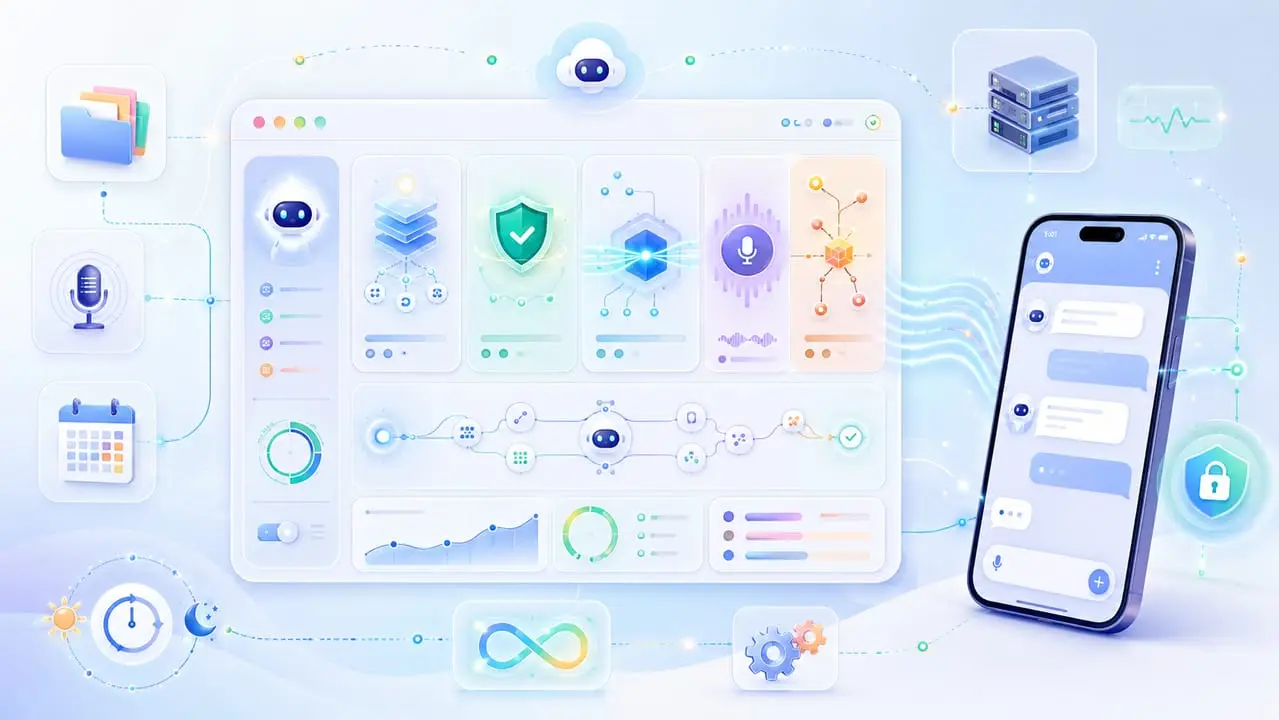
A basic Hermes Agent installation is only the first step. Once it’s done, the agent can already answer in the terminal, connect to a model and handle simple tasks. But the real value starts later: when Hermes stops being a one-off chatbot and becomes a working environment you can open from your phone, tune to your tasks, connect to Telegram, assign different models to different tasks, give limited permissions and teach to work safely.
This part is often underestimated. Someone installs the agent, checks the first reply, is pleased that everything works, and then runs into questions. Why did the Telegram bot stop answering? Where are the tokens going? Why is the agent using an expensive model for housekeeping? How do you open the Dashboard safely? How do you send code through Telegram? What is the Home Channel for, and why is it better to run the gateway as a system service?
Below is a practical guide devoted entirely to this “second half” of setting up Hermes: the Desktop interface, Telegram integration, the gateway, slash commands, voice, the Dashboard, memory, security and the real-world quirks of running it.
Read part 1: installation, setup and connecting to Telegram
Hermes Desktop: the same agent, with a clear interface
Hermes Desktop isn’t a separate agent and doesn’t work any differently. Under the hood it’s the same Hermes: the same skills, the same memory, the same models, the same gateway. The difference is that many settings have been moved into a graphical interface.
This is especially handy if you don’t want to dig through configs every time, hunt for the right files in root folders and remember CLI commands. In Desktop you can open the settings and go through the sections: model, chat, appearance, working directory, safety, memory, voice, subagents, gateway and other options.
The main value of Desktop is visibility. It’s easier to see what exactly is configured, where the agent works, which model it uses, what limits are set, whether confirmation of dangerous commands is on and how memory is organised.
But don’t overrate Desktop. It’s still Hermes, not a fully managed SaaS service. If something doesn’t work in the GUI, you’ll sometimes still have to open the terminal, check the config or edit settings by hand.
Model settings: the main model and auxiliary tasks
One of the most important parts of setting up Hermes Desktop is the Model section.
This is where you choose the main model and assign auxiliary tasks. The main model handles the conversation, complex reasoning and the agent’s core work. But around it there are plenty of housekeeping processes: image analysis, extracting text from web pages, context compression, working with skills, command approval, MCP, title generation, session search and curating replies.
The beginner’s mistake is to leave everything on auto. If a provider isn’t configured, or the system can’t tell which model to use for an auxiliary task, it may fall back to the main model. As a result, an expensive, powerful model starts burning tokens on trifles: generating titles, searching history, housekeeping checks and short internal operations.
The better approach is to spread the tasks across models.
Vision tasks need a model that understands images, screenshots and visual data well.
Web extract and compression need a model with a good context window and solid summarisation.
For title generation, approval, session search, skills hub and similar short tasks, a light model is often enough.
Curator tasks need a more careful model, because it is responsible for filtering, selection and the quality of the final output.
The point is this: keep the strong model where reasoning and quality are really needed, and use light models for short housekeeping processes. That cuts costs and makes the whole system cheaper to run.
Model context: why it’s better not to hard-code the limit
The model settings include a Context Length parameter. At first glance it’s tempting to set a big number by hand straight away: 128K, 256K or some other limit. But the more flexible option is to leave auto-detection on, if the provider and model support it.
The reason is simple: providers update models and change context limits and access parameters. If you hard-code a number, it can go out of date. Auto-detection lets Hermes ask the provider for the current limit and adapt to the current configuration.
This is especially important for people who switch models often or work through cloud providers.
The Session Search bug in Desktop
In the Desktop interface you may find that not all auxiliary tasks can be assigned properly through the GUI.
For example, the session_search task may be available in the CLI and config.yaml, but the Desktop interface may not know about it because of a hard-coded list of tasks. As a result, trying to assign a model through the GUI throws an error, even though the setting works through the CLI.
The practical takeaway: Desktop is convenient, but it doesn’t always fully replace the config and the terminal. If a setting won’t apply through the interface, check whether you can set it by hand through the CLI or directly in the configuration.
Chat: how to set the agent’s conversational style
The Chat section controls how the agent talks to you.
Here you can choose a personality, the style of conversation. One person needs a terse technical assistant that gives commands and doesn’t get distracted. Another needs a more expansive partner that explains the logic, lays out options and helps them think.
There’s no universal option. Pick the style for the task.
If you use Hermes as an engineering assistant, brevity, precision and a minimum of reasoning in the reply work better.
If the agent is used for research, design, learning or product work, a more expansive style is useful.
Reasoning blocks are configured separately. In this mode the model shows blocks of reasoning before the final answer. In everyday work they can clutter the interface, so they’re often switched off. But on complex tasks it’s sometimes useful to see how the agent approached the solution.
Image Attachments can be left on automatic. Then the agent decides for itself how to handle an image: as an ordinary file or through a vision model.
Appearance: technical or product display mode
In the Appearance section, what matters is not only the interface theme but also how tool calls are displayed.
There’s a Technical mode, which shows the raw JSON arguments and results of tool calls. That’s useful for debugging. You can see exactly what the agent passed to a function, what reply it got back and where an error may have crept in.
But for ordinary work, Technical mode clutters the interface. You see too much of the inner workings: JSON, parameters, raw tool output.
For everyday use, Product mode is better. It shows everything in a more human-readable form and doesn’t turn the interface into a stream of technical data.
The practical rule is simple: Technical for debugging, Product for normal work.
Workspace: the working directory and environment
The Workspace section defines where the agent works and what it sees on the system.
Working Directory is the folder where Hermes creates files, runs commands and works with the project. Choose it deliberately. Don’t give the agent access to the whole disk if it only works with one project.
Code Execution Mode set to Project means the agent runs code in the context of the project rather than as an isolated script. That’s convenient for real work, where dependencies, folder structure and project state matter.
Persistent Shell keeps the terminal state between commands. If the agent has moved to another directory, the next command runs there. That’s convenient, but it calls for care: the agent has to know where it is.
Environment Passthrough lets you pass environment variables to the agent, for example PATH and CUDA_PATH. This is especially useful if the agent needs to see Python, pip, CUDA, nvidia-smi and other system utilities. Without it, the agent may not find tools that are already installed and may demand absolute paths.
Auto-Approve File Writes is best kept off. Then the agent can’t silently save or overwrite files without confirmation. In the early stages that’s safer.
Safety: approvals, secrets and private URLs
The Safety section is one of the key ones.
Approval Mode is best set to Manual. Then the agent asks for permission before dangerous commands. That lowers the risk of an accidental deletion or overwrite, restarting the wrong process or changing an important configuration.
Set Approval Timeout so that you have time to react. If the timeout is too short, the command gets cancelled while you’re distracted. If it’s too long, the system may hang waiting.
Confirm MCP Reloads is best kept on. MCP servers give the agent access to external tools and services, so reloading them without confirmation may be undesirable.
The Command Allowlist should be short. Put in it only commands that are genuinely safe and often needed without manual confirmation. Stopping or restarting your own gateway, for example, can be an acceptable operation. But turning the allowlist into a list of everything is dangerous.
Keep Redact Secrets on. This feature hides API keys, passwords and tokens before data is sent to the model. If a secret accidentally ends up in the history, the model shouldn’t receive it in plain text.
Allow Private URLs and Browser Private URLs are best kept off unless you have a deliberate need. The agent shouldn’t freely open internal addresses, private panels and local services.
File Checkpoints can be switched on if you experiment with the configuration a lot and are afraid of breaking files. Then the agent makes backups before making changes. If you work with Git, you can rely on Git, but for beginners checkpoints are an extra safety net.
Memory & Context: how the agent remembers and keeps the thread
Hermes is interesting not only as an interface to a model but also as an agent with memory. We covered how it works inside, with its five memory layers and memory providers, in a separate article.
Persistent Memory keeps facts between sessions. It’s not just the chat history but extracted data the agent can use later.
User Profile helps the agent remember your preferences: reply style, formats, typical tasks, working habits.
Memory Budget and Profile Budget cap the size of the memory and the profile. Don’t make them unlimited: the more data is pulled into the context, the higher the load and the potential costs.
To keep memory from filling up with stale entries and duplicates over time, you can install our hermes-dreaming skill: once a night it checks memory against conversations, keeps what matters and asks about what’s out of date.
Context Engine handles context overflow. One useful mode is Compressor. When the context gets large, old messages are compressed into a summary. That way you can carry on a long conversation without a full reset.
Auto-Compression does this automatically when a set threshold is reached.
Compression Threshold sets the point at which compression starts, for example when the context is 50% full.
Compression Target sets how hard the history should be compressed.
Protected Recent Messages is an important setting. It’s the number of most recent messages the agent never compresses. In complex tasks the latest messages often hold the most important details: clarifications, current decisions, constraints, the latest edits. If they’re compressed too early, the agent may lose the context.
Context Window is Hermes’s own window, which it holds in memory. Don’t confuse it with the model’s own Context Length. Context Length is the model’s limit. Context Window is how Hermes manages the current conversation.
Voice: voice input and reading replies aloud
The Voice section covers voice input, speech recognition and reading replies aloud.
Speech To Text can be switched on if you want to dictate tasks to the agent. It’s handy, especially if you use Hermes through Telegram or as an always-on assistant.
But if you already have a separate dictation tool installed on your computer, Hermes’s built-in STT can get in the way. Two apps may try to use the microphone at the same time, conflict and behave erratically. In that case it’s better to switch STT off in Hermes.
Read Responses Aloud reads replies out. For most work tasks you don’t need it. Text is usually quicker to read and easier to copy and reuse. Besides, speech synthesis can eat resources.
If you do need replies read aloud, you can use a Text-To-Speech Provider, for example Edge TTS. But switch it on only where voice mode is really needed.
Advanced: limits, steps and subagents
The Advanced section covers technical limits.
Max Agent Steps sets how many steps the agent can take in a single task. A small limit is enough for simple questions. For complex pipelines, such as auto-posting, content generation, resizing images, publishing to several platforms or analysing a large project, you may need to raise it. Otherwise the agent may stop halfway through.
API Retries sets the number of retries on temporary network or API errors.
Tool-Use Enforcement set to auto lets the agent decide for itself when to call tools.
Subagent Model is an important cost setting. Subagents often don’t need the expensive main model. You can move them to a light model so as not to spend expensive tokens on auxiliary operations.
Parallel Subagents sets how many subagents can run at once. It speeds up complex tasks but increases load and costs.
Subagent Timeout caps how long a subagent can run. That’s useful so that a single task doesn’t hang forever.
The gateway in Desktop: local and remote mode
Desktop has a separate Gateway section.
Local Gateway means the app runs its own gateway on localhost. This option works locally and doesn’t need an external server.
Remote Gateway is for when the agent runs on another machine or on a VPS. In that case you can enter a URL and a session token in Desktop to connect to the remote agent.
Useful actions in this section:
test the connection to the remote gateway;
save the settings for the next restart;
save and reconnect straight away;
open the logs if the gateway won’t start.
An important catch: if you already have a Hermes CLI gateway running with the same Telegram token, Desktop may shut it down when it starts. That’s a gateway conflict. The fix is to use different tokens or run only one gateway.
Limitations of the Desktop version
Desktop is convenient, but it has downsides.
First, Electron uses more resources than the CLI. The Desktop app drags a browser engine along with it, so even when idle it can take noticeably more memory.
Second, themes are limited. There’s usually a light theme, a dark theme and a few accent colours, but you can’t quickly build a theme entirely your own.
Third, on Linux, Desktop doesn’t always work as a fully standalone app. Some Python dependencies may still have to be installed by hand.
Fourth, a gateway conflict is possible if the CLI and Desktop use the same Telegram token.
Fifth, the configuration editor in Desktop is basic. Complex blocks, especially auxiliary models, are sometimes easier to edit in VS Code or the CLI.
Sixth, some settings may be unavailable in the UI or displayed incorrectly, even though they work in the config.
The conclusion is simple: Desktop is good as a convenient shell, but the terminal and configs remain important tools for advanced setup.
How the Telegram integration works
The Telegram integration is built on the gateway.
Hermes itself is the agent loop and the tools. Telegram is just the interface. The gateway sits between them: it receives messages from the messenger, passes them to the agent, gets the reply and sends it back.
The key point: the gateway has to run all the time. If you close your laptop or stop the process, or the server goes to sleep, the Telegram bot stops answering.
That’s exactly why a VPS is recommended for always-on work. A server doesn’t sleep, the gateway lives 24/7 and the agent can take tasks at any time.
There’s one more catch: if you restart the gateway while the agent is working on a task through the Telegram chat, the current task may be interrupted. When you work through the terminal interface, the agent can carry on with a task regardless of the Telegram gateway. But the Telegram scenario depends on the gateway.
Creating a Telegram bot
To connect Telegram, you first need a bot.
It’s created through BotFather, Telegram’s official tool for creating bots. After the command to create a new bot, you set a display name and a username. The username has to be unique and usually ends in bot.
Once the bot is created, BotFather issues an HTTP API Token. This is the access key to the bot. Save it and add it to Hermes.
Don’t share this token with anyone. Whoever gets the token can control the bot.
Telegram User ID and restricting access
By default the bot can answer anyone who finds it. For a personal AI agent that’s a serious risk.
So you need to add Allowed User IDs: a list of Telegram IDs the bot allows to talk to Hermes.
You can get your Telegram ID through dedicated bots, for example @userinfobot, @RawDataBot or @getidsbot. After the /start command, such a bot gives you a numeric ID.
If several people are going to use the agent, you can list several IDs separated by commas. But remember: all these people get access to the same agent, its memory, tools and capabilities.
Setting up the gateway for Telegram
Setup is done through the gateway wizard.
In it you choose Telegram, then enter the main parameters:
Telegram bot token;
Allowed user IDs;
Home Channel ID;
settings for other messengers, if you need them.
When you enter the token in the terminal, the characters may not be shown. That’s normal protection.
Better not to leave Allowed user IDs empty. Otherwise the bot may become public.
At first, the Home Channel can be set to your personal chat. Later you can replace it with a separate group or channel.
Systemd service: why the gateway should run as a service
Once the gateway is configured, it’s better to install it as a systemd service.
That gives you two important things.
First, the gateway runs in the background and doesn’t need an open terminal.
Second, the gateway starts automatically when the server or computer reboots.
For a local machine a user service usually works. For a VPS, a system service that starts at boot.
After installation it’s worth restarting the gateway by hand, checking its status and running diagnostics. If the Telegram bot doesn’t answer, the gateway is the first place to look.
Pairing the Telegram bot with Hermes
Once setup is done, open the bot you created in Telegram and send /start.
The bot may send you a pairing code. Confirm it in the terminal. After that the Telegram bot is linked to a specific Hermes account.
Then you can send a test message. If the agent answers, the integration works.
From then on Telegram becomes a full control interface: you can write tasks, send files, run background requests, check token usage, change the model and work with cron jobs.
Common problems with the Telegram integration
If the bot doesn’t answer right after setup, the most likely cause is that the gateway isn’t running. Check its status and start it.
If the bot used to answer and then stopped, most likely the gateway crashed, the local machine went to sleep, the terminal was closed or the server rebooted.
If you get the error hermes: command not found, the shell may not have picked up the path to Hermes. Sometimes it helps to refresh .bashrc or switch to the user Hermes is installed under.
If messages arrive but the bot doesn’t answer the right user, the Allowed User ID is probably wrong. Check the configuration and make sure your Telegram ID has been added.
If the bot doesn’t react to files, the problem may be the format. Telegram blocks some program files or passes them on awkwardly.
Slash commands for controlling the agent from Telegram
Once Hermes is connected, you can control the agent with special commands.
/new creates a new session with a clean context. It’s useful when the agent starts getting confused, repeating itself or dragging old information into a new task.
/compress compresses the current conversation history. The agent summarises the old messages and carries on.
/model lets you change the model right from Telegram, without the terminal.
/reasoning low and /reasoning high change the depth of reasoning. Low mode saves tokens on simple tasks. High mode helps with complex analysis.
/btw or /bg sends a background request without interrupting the current task.
/usage shows token usage and the state of the context window.
/goal sets a standing goal for the current session.
/reload skills reloads the list of skills after you install or change skills. Where to get skills and plugins and how to install them is covered in a separate article.
/cron shows the list of scheduled jobs.
Cron jobs can be created not only with a command but also in plain language. For example: “Every Monday at 9:00 send me a digest of the three top AI news stories.” Hermes should recognise the task, create a schedule and confirm it.
Sending files and code through Telegram
Telegram doesn’t always let program files through directly. For example, .py, .js and other formats may be blocked or handled awkwardly.
There are two ways round this.
The first is to rename the file to .txt, send it to the agent and explain that it contains code.
The second, if the file is already on the server, is to give the agent its path. That’s quicker and more convenient for large files.
Large chunks of code can be pasted straight into a message. Hermes can handle multi-line input as long as there’s enough context.
The Dashboard: a web interface for advanced users
Hermes has a Dashboard, a web interface for monitoring and control.
Through it you can look at:
current sessions;
the status of the agent and channels;
token and API call analytics;
cron jobs;
the configuration;
logs;
profiles.
But the Dashboard needs special attention to security. By default it may be available locally and not ask for a password. If you open it on the server’s public IP, it becomes available to other people.
The right way to access it is through SSH port forwarding, a VPN or a protected setup with authentication. Never expose the Dashboard to the internet unprotected.
For most users Telegram is enough. The Dashboard is for those who want to see everything in one interface and have finer control over the agent.
Home Channel: a separate place for notifications
The Home Channel is the chat, group or channel where Hermes sends the results of background tasks, cron notifications and system messages.
At first the Home Channel can be set to your personal chat. But for always-on work it’s more convenient to set aside a separate channel or group. Then your personal chat stays for conversation, and automatic notifications go somewhere else.
This is especially useful if the agent is used for regular digests, monitoring, background tasks or team work.
If the Home Channel isn’t set up, Hermes may warn you about it on the first message and suggest a command to set it.
Other messengers
Hermes can work not only with Telegram but also with Discord, Slack, WhatsApp, Signal, Matrix and other channels, depending on the configuration.
The principle is the same: the messenger is the interface, the gateway is the bridge, Hermes is the agent.
An important detail: it’s one and the same agent with one memory and one set of skills. If you’ve been talking to it through Telegram and then move to Discord, the agent can use the shared context.
WhatsApp may require a separate QR pairing code. Matrix is configured with a homeserver URL, a username and a password or access token.
For most users Telegram remains the most convenient option: simple setup, support for files, voice messages and commands, and it works from your phone.
Voice messages in Telegram
Hermes can transcribe voice messages in Telegram.
It works like this: you send a voice note, the agent transcribes it, works out the task and replies in text.
That’s handy when you need to set a task quickly from your phone: on the road, before bed, or when you can’t type out a long request.
Voice replies can be switched on separately if you need speech synthesis. But by default it’s better to stick with text replies: they’re quicker to read, easier to copy and more convenient to work with.
The practical takeaway
The genuinely useful part of setting up Hermes begins after the basic installation.
For the agent to become a working tool, you have to configure not just the model but the whole environment around it: Desktop, the gateway, Telegram, memory, context, safety, voice, the Dashboard, subagents and auxiliary models.
The core logic is this:
Desktop is for managing settings conveniently.
Auxiliary models help you avoid using an expensive model for housekeeping.
Workspace defines where the agent works and what it sees.
Safety protects against dangerous commands, leaked secrets and unnecessary access.
Memory & Context help the agent keep the thread in long tasks.
Voice makes working from your phone easier.
Advanced lets you set up complex pipelines and subagents.
The gateway turns Telegram into a control interface for the agent.
A systemd service makes the Telegram link stable.
The Dashboard gives you monitoring but needs protection.
The Home Channel separates notifications from ordinary conversation.
If you set all this up carefully, Hermes stops being just an agent in a terminal. It becomes a complete working system: reachable from your phone, connected to your tasks, able to run 24/7, take files and voice messages, run background tasks, save tokens and gradually adapt to the way you work.
But precisely because Hermes can act, it has to be restricted. The more an agent can do, the more the rules matter: manual approvals, tokens kept private, allowed users, a protected Dashboard, spending limits and a deliberate split of tasks across models.
Read part 3: a safe start, Docker, diagnostics and common mistakes